How to Create Your First AI Video: A Step-by-Step Guide
Learn how to create your first AI-generated video in minutes using FeedScape. From topic to finished video, we'll walk you through the entire process.
Creating your first AI video with FeedScape is easier than you might think. In this comprehensive guide, we'll walk you through the entire process, from setting up your account to exporting your finished video.
Step 1: Set Up Your Account
First, create your FeedScape account. You'll get 3 free trial videos to test the platform. Once registered, you'll need to add your API keys.
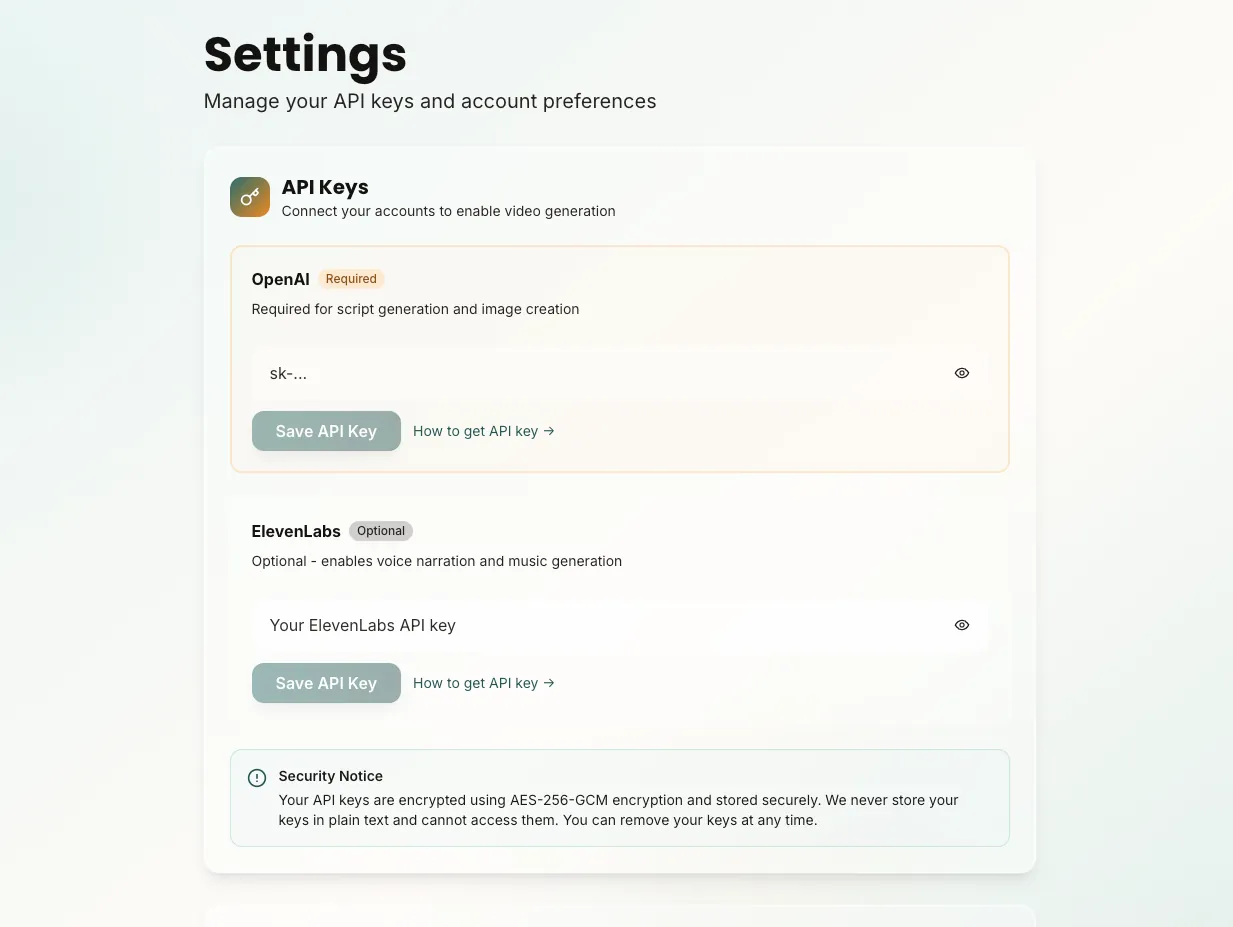
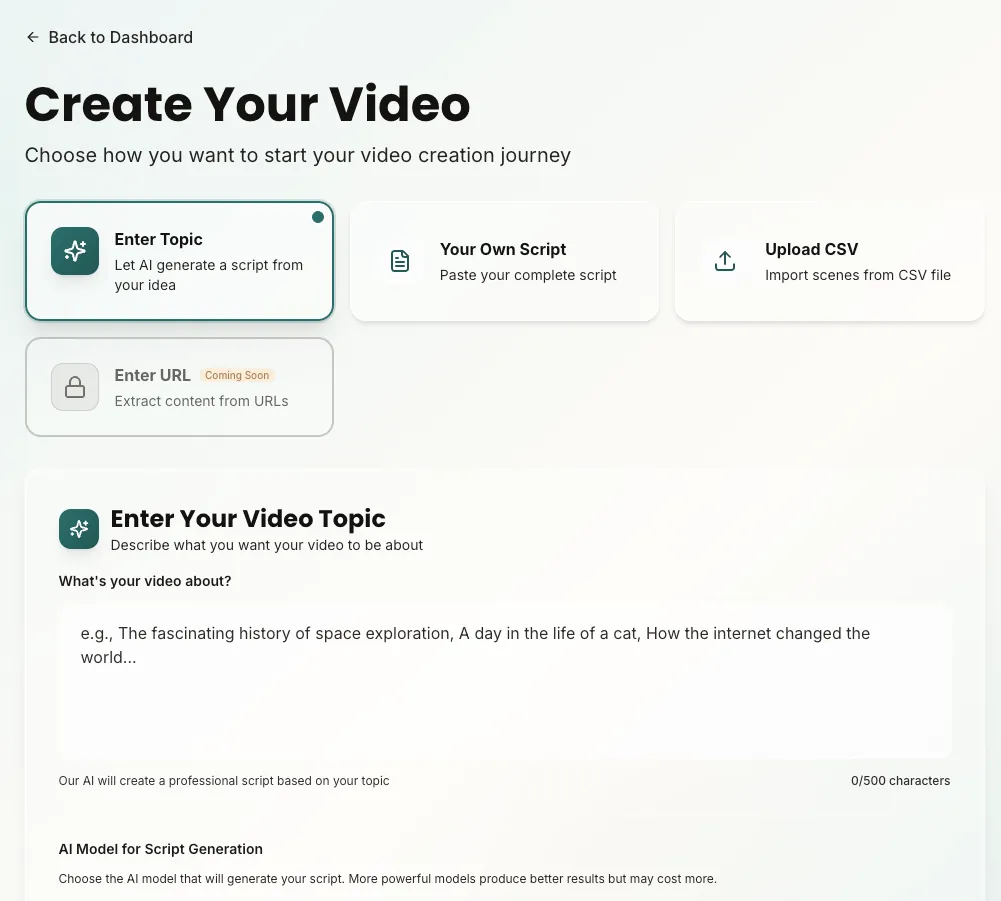
Step 2: Choose Your Input Method
FeedScape offers three ways to create videos:
- Topic Input: Enter a topic and let AI generate the script
- Script Input: Paste your own complete script
- CSV Import: Upload multiple topics or scripts at once
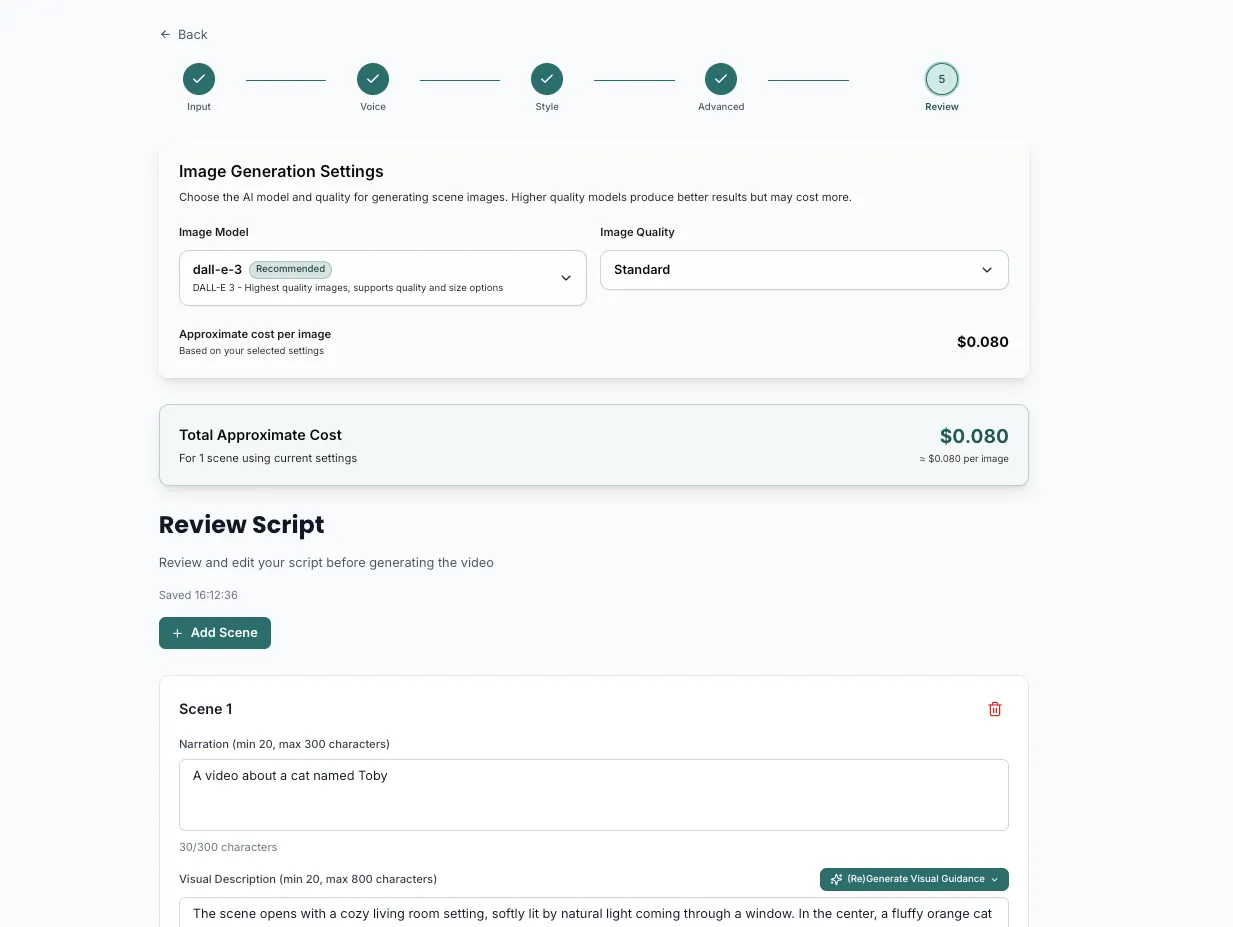
Step 3: Generate or Review Your Script
If you chose topic input, FeedScape will generate a script for you. You can edit it, regenerate sections, or split it into scenes. For script input, you can review and adjust before proceeding.
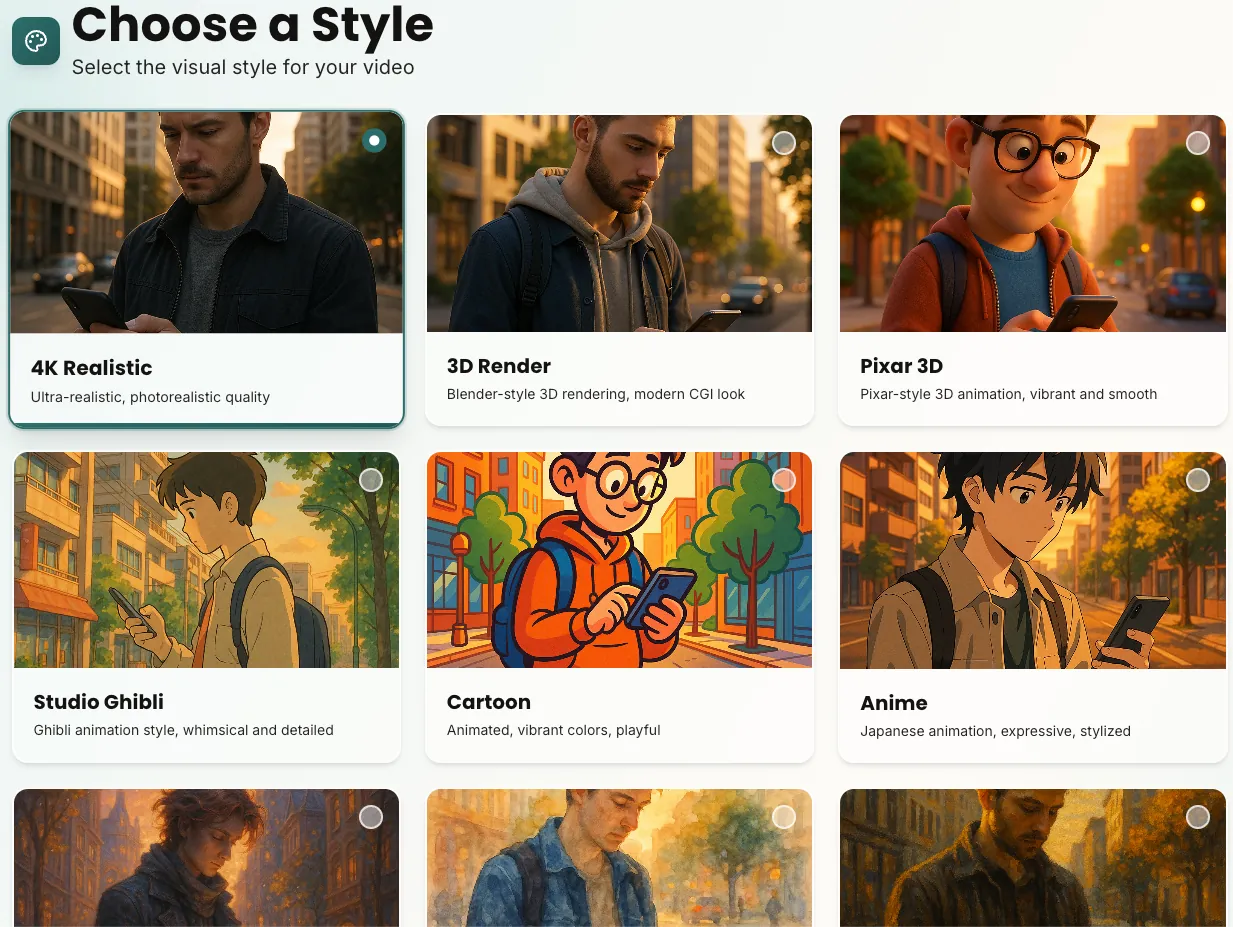
Step 4: Select Visual Style
Choose from 20+ visual styles to match your content. Whether you want realistic footage, anime aesthetics, cinematic visuals, or unique styles like Lego or Wireframe, FeedScape has you covered.
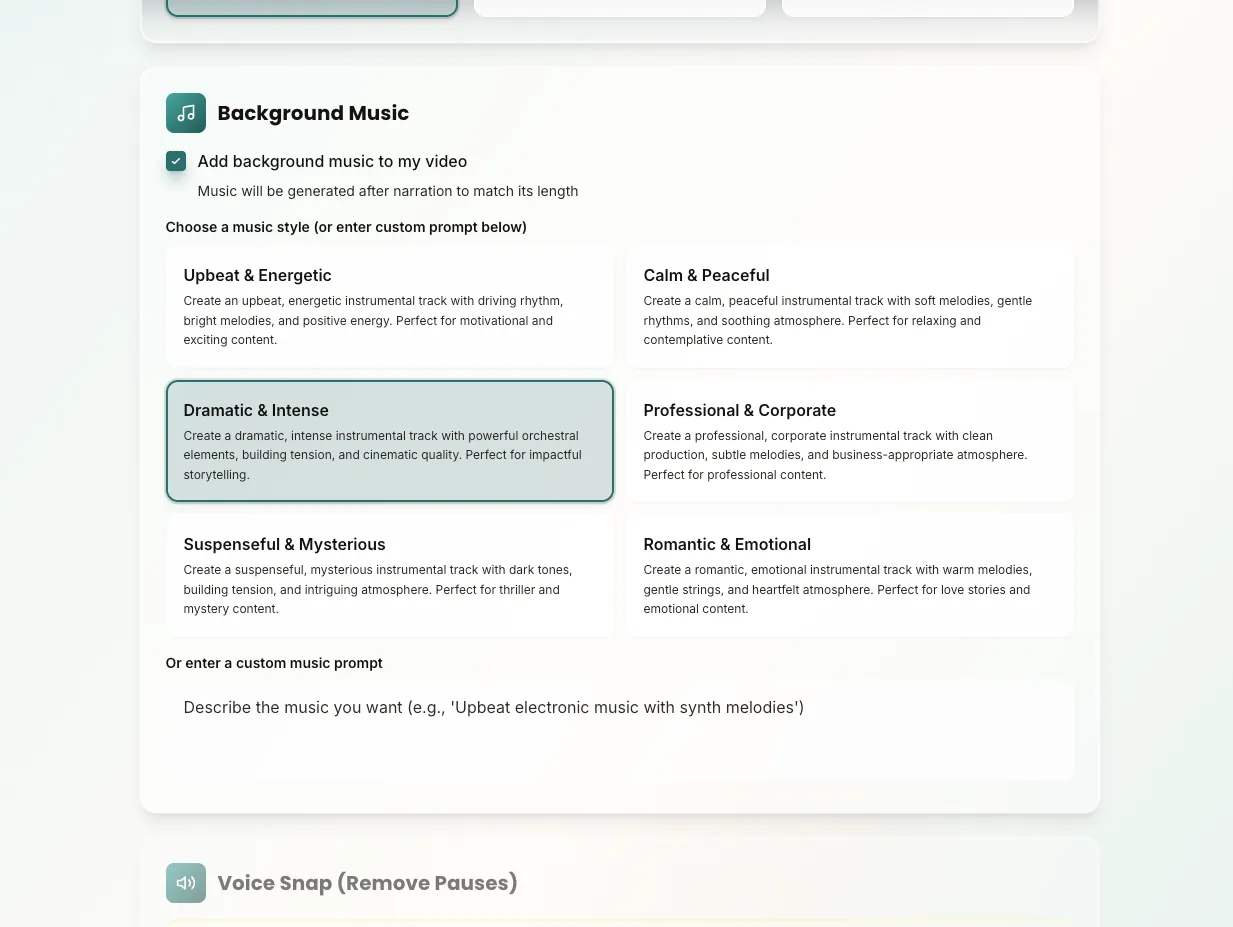
Step 5: Choose Voice and Music
Select a voice from hundreds of ElevenLabs voices that matches your brand. You can preview voices before selecting. Enable Voice Snap to automatically remove pauses for smoother narration. Optionally, add AI-generated background music to enhance your video.
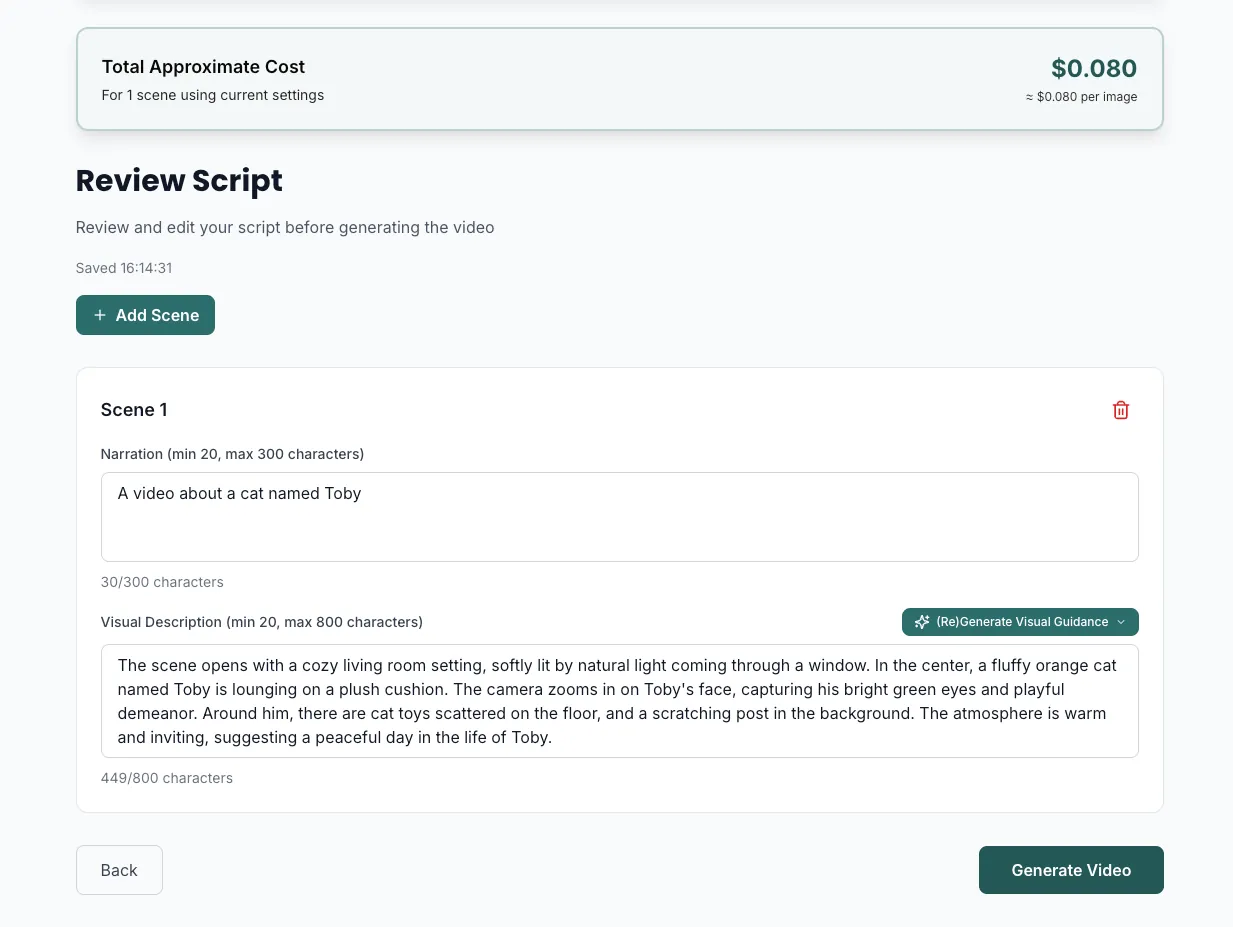
Step 6: Review and Generate
Review all your scenes, make any final adjustments, and click "Generate Video". FeedScape will process your video in the background. You'll receive a notification when it's ready.
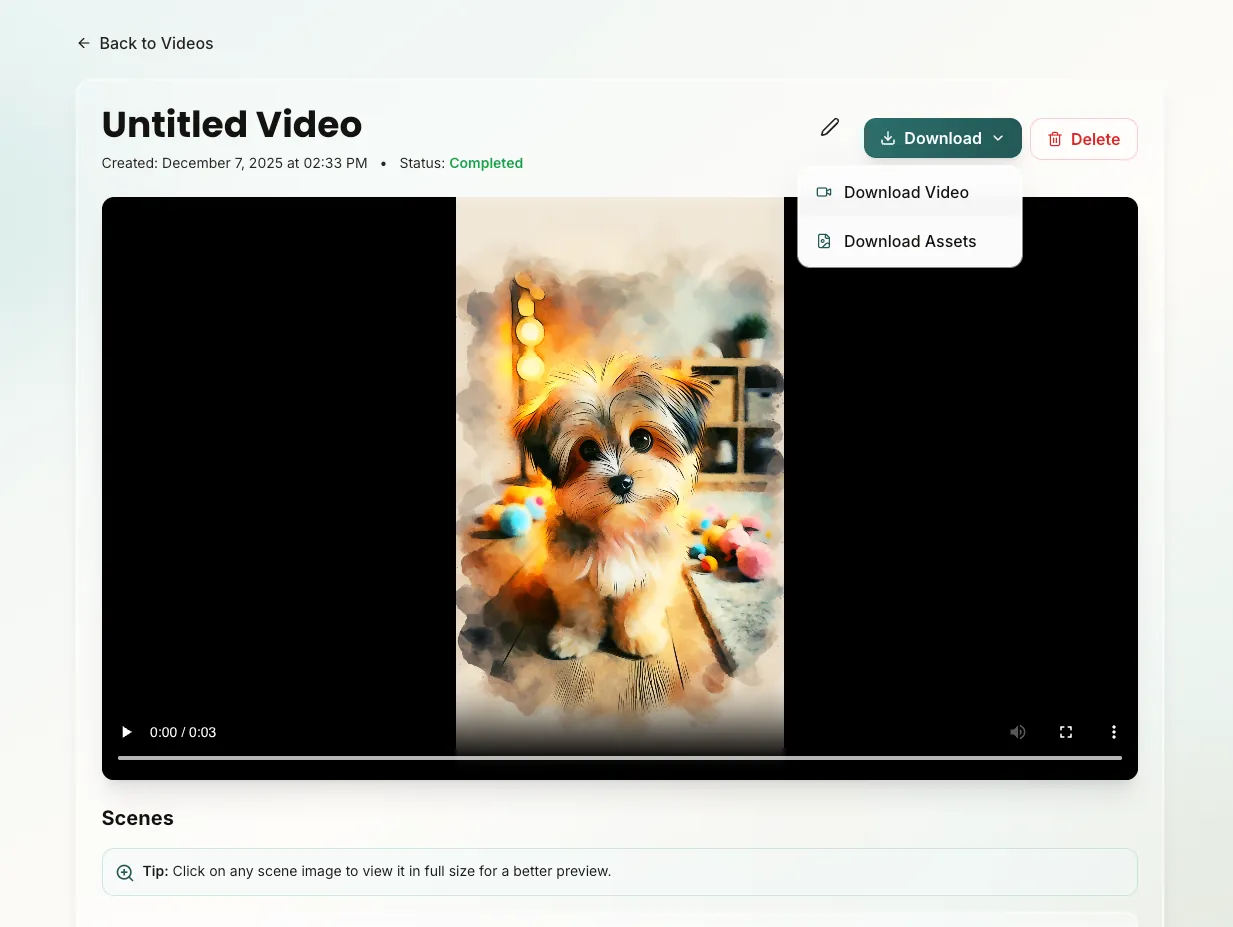
Step 7: Download and Share
Once your video is ready, you can download it, share it, or make edits. FeedScape stores all your videos securely, and you can regenerate individual scenes if needed.
Pro Tips
- Start with shorter scripts (30-60 seconds) to test the platform
- Experiment with different styles to find what works for your content
- Use clear, descriptive topics for better script generation
- Review and edit generated scripts to match your voice
- Test different voices to find the perfect match for your brand
- Enable Voice Snap for smoother narration without pauses
- Add captions for better accessibility and engagement
- Use motion graphics and transitions for professional polish
Ready to create your first video? Start with 3 free trial videos!
Get Started Free